


Wireguard Server Installation 2025 - WG EASY DOCKER
This document is intended for setting up WireGuard VPN as a Docker container with the WG-Easy interface.
1. Firewall (UFW) Settings
Ubuntu 22.04 usually comes with UFW enabled. Open the required ports:
sudo ufw allow 51820/udp
sudo ufw allow 51821/tcp
To check UFW status and rules:
sudo ufw status verbose
2. Docker Installation (with Official Script)
Use the following command to quickly install Docker:
curl -sSL <https://get.docker.com> | sh
After installation, add the user to the Docker group and check the installation with version control:
sudo usermod -aG docker $(whoami)
newgrp docker
docker version
3. WG-Easy Installation
Create directory for Config:
mkdir -p ~/.wg-easy
Launch WG Easy Docker Container:
docker run -d \\
  --name=wg-easy \\
  -e WG_HOST=$(curl -s ifconfig.me) \\
  -e PASSWORD=GUCLUSIFREGIRINBURAYA \\
  -v ~/.wg-easy:/etc/wireguard \\
  -p 51820:51820/udp \\
  -p 51821:51821/tcp \\
  --cap-add=NET_ADMIN \\
  --cap-add=SYS_MODULE \\
  --sysctl="net.ipv4.conf.all.src_valid_mark=1" \\
  --sysctl="net.ipv4.ip_forward=1" \\
  --restart unless-stopped \\
  weejewel/wg-easy
4. Web Interface Login
To access the WG-Easy interface via browser:
http://SUNUCUIPADRESI:51821
The web interface password is the strong password you specified in the previous step.
All client settings and configuration files are kept in this directory:
~/.wg-easy
5. Web Interface
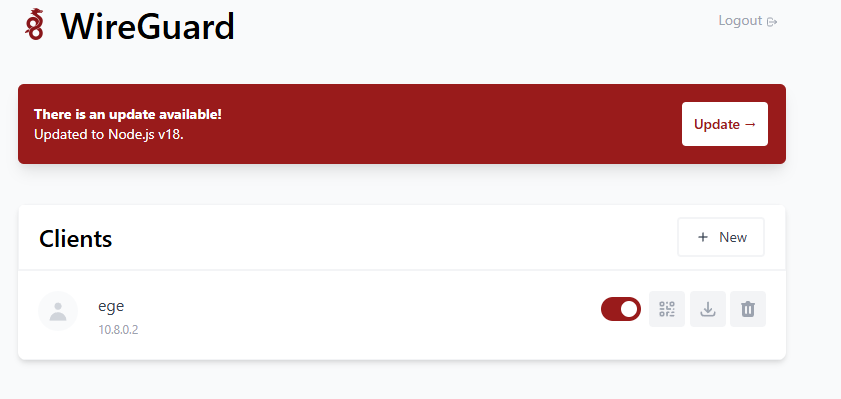
After pressing the new client button, all you have to do is type a name. Then you can download the resulting config and use it on the computers you want to use.
Comments0
No Comments Yet
Be the first to share your thoughts.
Please sign in or sign up to leave a comment.