

Saved cards, auto-pay and automatic balance top-up are now available
You can now save your card once on Gyro and let renewals and your balance take care of themselves. Three features are live together: saved cards, auto-pay by card and automatic balance top-up. Cards issued outside Turkey are accepted as well.
Saved cards
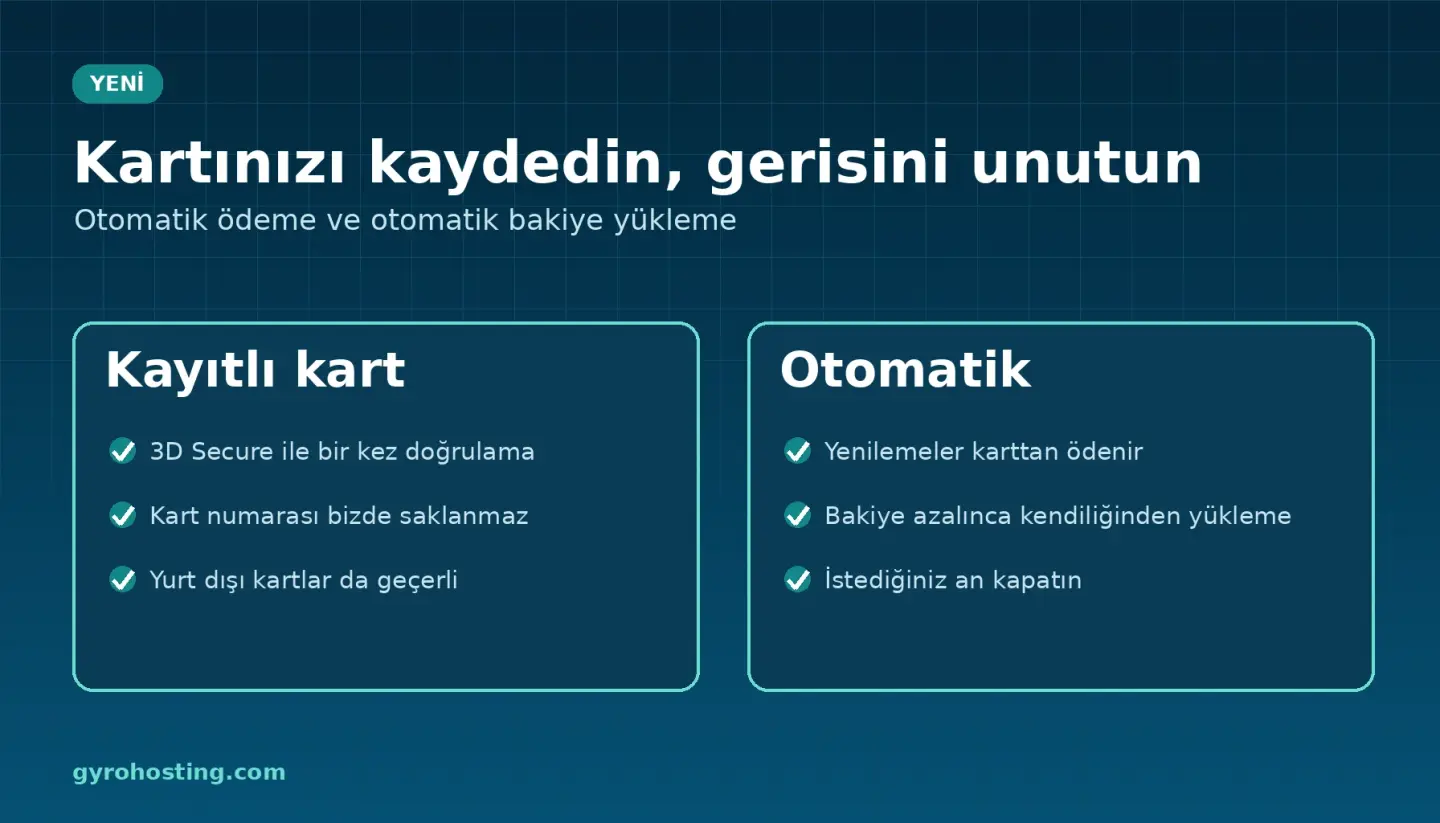
Tick Save this card securely for future payments at checkout, or go to Account Settings → Saved Cards → Add Card. The card is verified once with 3D Secure. Your card number is never stored by Gyro; the card is kept in the bank's secure card vault and we only see its last 4 digits and expiry date. You can delete it at any time.
Auto-pay by card
Turn on Turn On Auto-Pay for a card and your renewal invoices are charged to it automatically on the due date, so you no longer need to track renewal dates. If you have more than one card, a backup card is tried when a charge fails. You are warned in the panel before a card expires.
Automatic balance top-up
Hourly-billed services such as Gyro Cloud, Gyro Containers and Object Storage are paid from your prepaid balance, and an empty balance can stop a service. Automatic top-up prevents that: for example, "when my balance falls below 500 TRY, add 2,000 TRY from my card", and the system does the rest.
- Top-up amount: at least 250 TRY, at most 15,000 TRY (excluding VAT). Each top-up is invoiced with VAT.
- Safety limits: at most 2 top-ups and 30,000 TRY per day, 60,000 TRY per month.
- Turn it on from the Account Balance page or the Saved Cards tab, and switch it off whenever you like.
Cards issued abroad
You can pay with credit and debit cards issued outside Turkey. The amount is charged in Turkish lira; your card only needs to be enabled for 3D Secure and online payments.
Step-by-step guides: Paying invoices: card, bank transfer, balance · Adding balance and automatic top-up.
Comments0
No Comments Yet
Be the first to share your thoughts.
Please sign in or sign up to leave a comment.